Set it up once.
Connect to your server, start the service and check its status. Logs and diagnostics help you find problems.
Server settings · Service controls · Diagnostics
 AmiHASS0.1
A NEW CONNECTION FOR CLASSIC AMIGAOS
Control your Home Assistant devices from Workbench. Browse your home or build your own dashboard.
AmigaOS 3.x / 68000 or better / MIT licensed
One shared service.
A whole home of connections.
YOUR SMART HOME
Home Assistant is an open-source platform for lights, sensors, heating and other smart devices.
AmiHASS brings those devices to your Amiga.
Visit Home Assistant ↗01 / THE TOOLKIT
Native tools. One shared foundation.
Connect to your server, start the service and check its status. Logs and diagnostics help you find problems.
Server settings · Service controls · Diagnostics
Choose a room, filter by type or name, and explore your devices and their states.
Room selector · Search and filters · Device details
Arrange lights, sensors and heating controls in your own layout. Save your pages or try Sample data offline.
Custom layouts · Device controls · Backups
FROM WORKBENCH
Real app windows. Sample data.
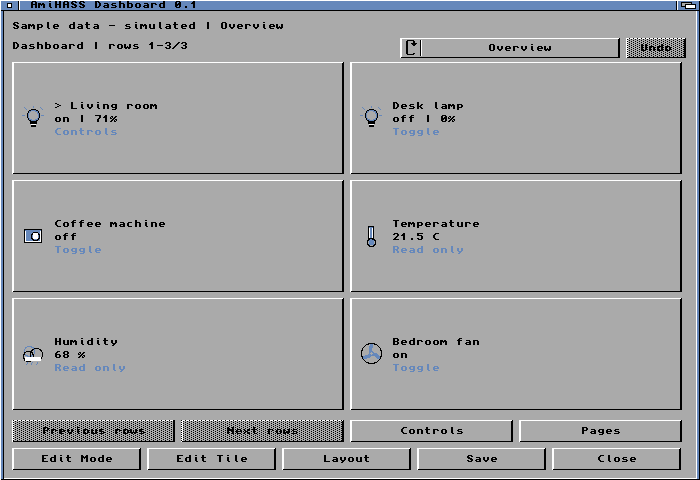
Lights, sensors and a fan in one view.
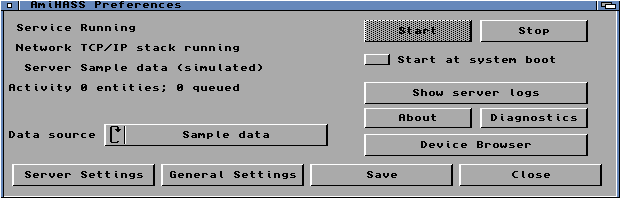
Set up and manage the bridge.
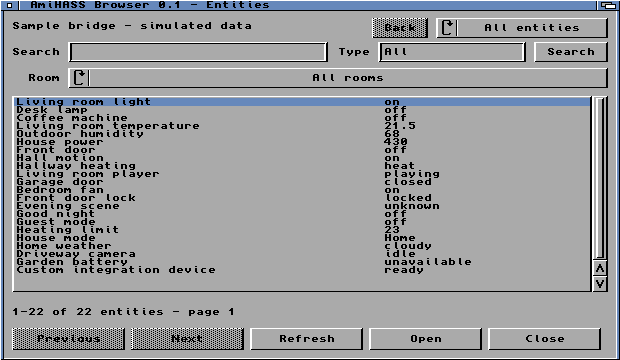
Find devices and check their states.

02 / THE SHARED SERVICE
Configure once. Connect every client.
One service connects your Amiga apps to Home Assistant. Apps share device states and controls. Your token stays in the bridge.
Work at Amiga speed. The bridge updates selected devices and shares results between apps. Low memory mode frees unused libraries while idle.
Know what’s connected. See service, network and server status at a glance. Automatic reconnect helps recover from connection problems.
03 / DOWNLOADS
Includes the bridge, Preferences, Device Browser and Dashboard. The SDK is available separately below.
LATEST PUBLISHED RELEASE
Published 2026-11-18
Bridge, Preferences, Device Browser and Dashboard.
Release details and counts refresh every five minutes.
Browser and Dashboard normally install in SYS:Utilities. Updates preserve the service state. Uninstall can keep your settings.
Use Installer 42+ and a screen of at least 640×256. Sample data works offline. Server data needs TCP/IP, C:curl, a token and HTTPS support—normally AmiSSL, certificates and a correct clock. AmiSSL needs a 68020+; check curl’s requirements too.
C:curl --version to check HTTPS support. Set the clock and follow the package’s certificate instructions.curl and AmiSSL are separate downloads. See the full installation guide for details.
Download the matching checksum file and verify the archive:
shasum -a 256 -c AmiHASS-0.1.lha.sha256A matching archive reports OK.
04 / FOR DEVELOPERS
Build on the same connection.
Use the C SDK for native apps or ARexx for scripts. Browse devices, read states and send controls through the shared bridge.
C headers, client helpers, documentation and an example app.
AMIGA APPS, CONNECTED
NovaDock’s HASS plugin puts device states and controls in your Workbench dock. It uses the AmiHASS bridge and works with Sample data too.